
What is Gift Box option?
The Gift Box is a premium packaging option available for select products at a fee of $2.50. The products will be placed inside the gift box, which is then packaged in a standard shipping envelope.
The Gift Box is available in 2 colors: White & Gold.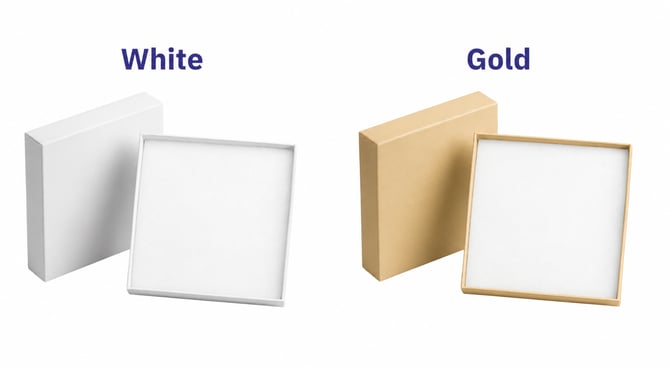
Is the Gift Box option available for all items?
The Gift Box option is currently available for the following list of products:
| Item ID | Product Name |
| 250 | |
| 251 | |
| 252 | |
| 253 | |
| 261 | |
| 262 | |
| 263 | |
| 264 | |
| 1061 | |
| 923 | |
| 930 |
How many Gift Boxes can you add?
You can add as many Gift Boxes to your order as you wish. However, please keep in mind the capacity of each box to ensure your items are packaged correctly: each Gift Box can hold a maximum of 2 ornaments.
If the number of ornaments exceeds the capacity of the Gift Boxes you purchased, the remaining items will be shipped in standard packaging (envelope).
For Examples:
-
2 Ornaments: You can add 1 Gift Box. Both ornaments will be placed inside the single box.
-
3 Ornaments: We recommend adding 2 Gift Boxes to ensure all items are gift-wrapped. If you only purchase 1 Gift Box for an order of 3 ornaments, 2 will be placed in the box, and the 3rd one will be packaged separately in a standard envelope.
How to add Gift Box for the order?
Gift Box is listed as a separate product on catalog. You can access Gift Box item variant ID and template [HERE].
📌For a step-by-step visual guide, please watch our tutorial video below:
Order submitted via CSV upload
For CSV, please add information of the Gift Box in a single line in the CSV file as a separate item.

Order created on Dreamship app
Step 1: On Dreamship dashboard page, go to Orders >> All Orders
Step 2: Click the "Create Order" button in the top right corner.
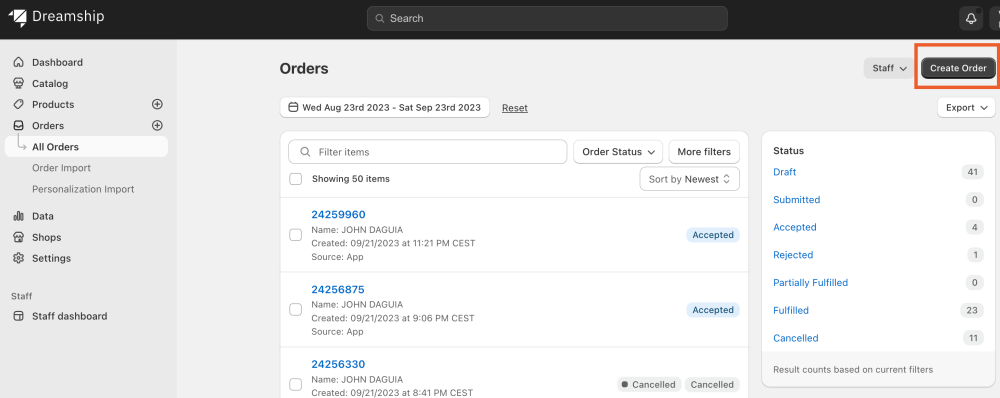
Step 3: The order creation interface will appear with a new Order ID.
Step 4: Add an existing product or create a new product, following detailed steps [HERE].
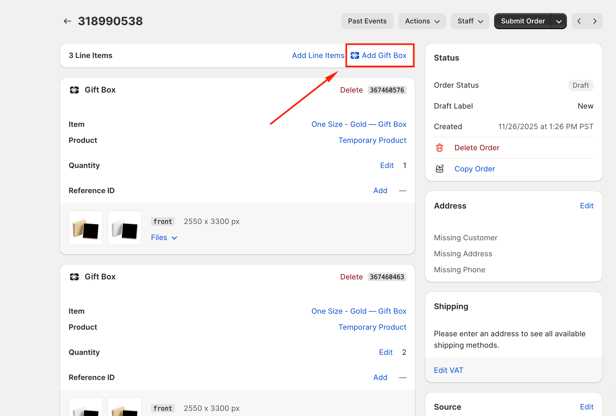
Step 5: Select your Gift Box in 3 ways:
- Add Gift Box into the order by clicking “Add Gift Box”
- Or you can choose “Existing product” if you have already created a Gift Box product in your store.
-
Otherwise, click “New product”, check the box for the Gift Box item, and click “Add”.
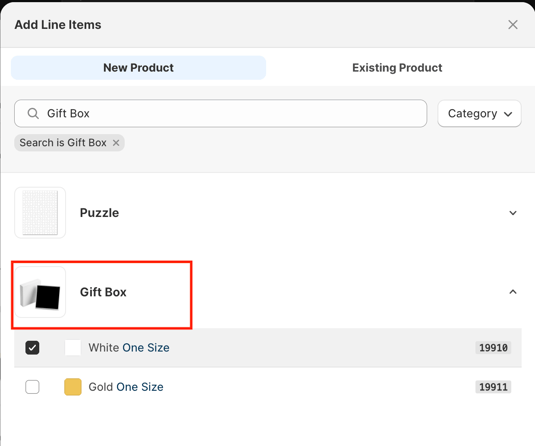
Step 6: Input Address. Choose shipping method.
Step 7: (optional) Edit Reference ID in the "Source" section
Step 8: Click Submit Order in the top right corner.
Order submitted via API from your backend store/marketplaces or orderdesk
Gift Box is listed as a separate product on catalog so you can add a Gift Box as a normal item into the order.